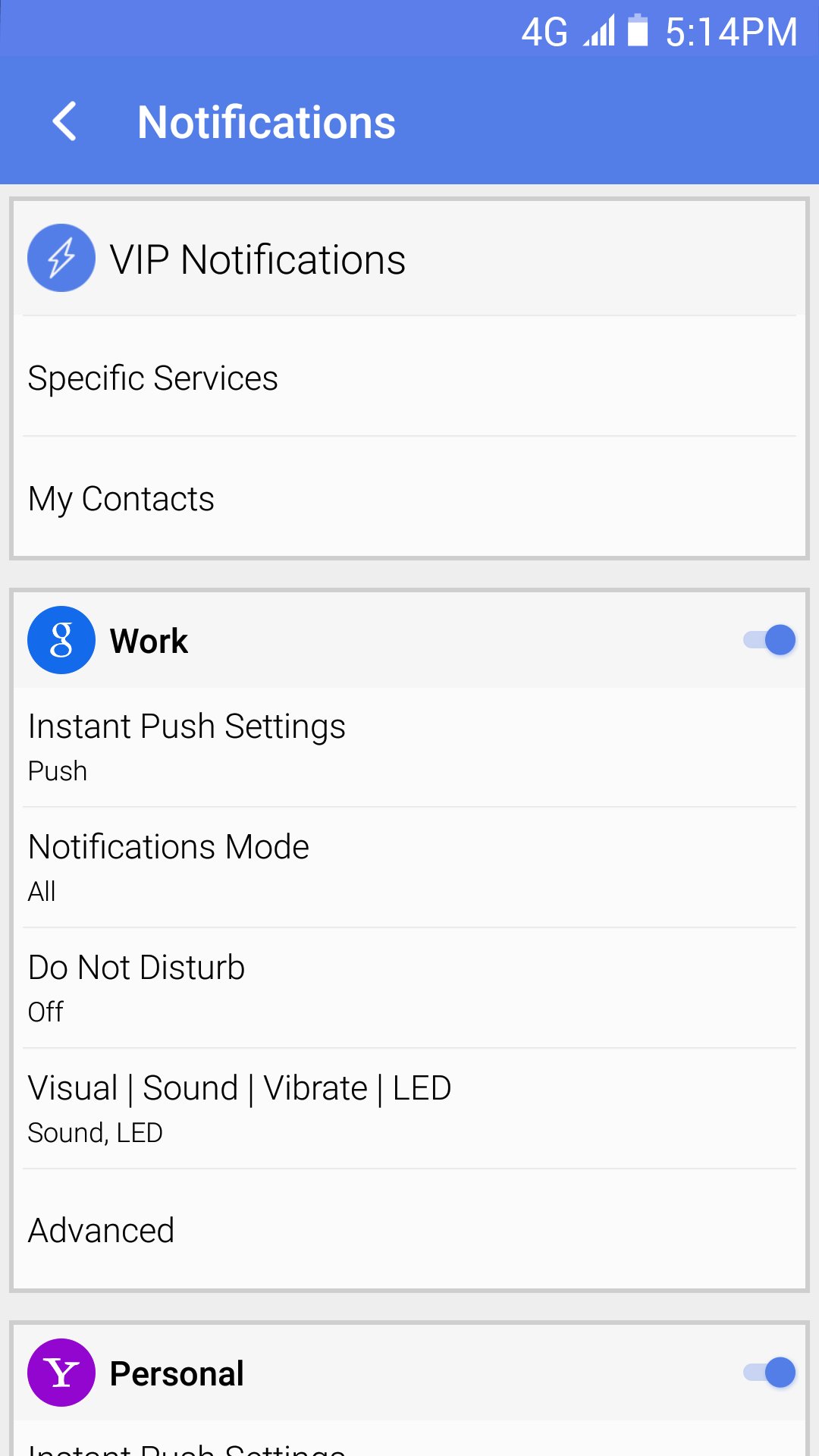
Notifications use the notification bar and show a short preview of the email instantly. This makes mobile email modern to fit today’s pace. You can tailor each account to have a different notification scheme, e.g. have different options for work-related accounts, and personal / family accounts.
TypeApp allows you to control the notifications per account using More (o o o) | Notifications | scroll to the account and you will access a per account settings. Choose Instant Push Settings | Push or Fetch | choose from main options:
- Push – To get instant notifications.
- Push (No Preview) – To get instant notifications without a preview to reduce battery usage.
- No Push – To disable push notifications, but still see emails being updated when opening the app.
- Fetch – To get periodic notifications based on an interval set in Fetch Interval setting.
- Manual – To do on-demand refresh sync only, and do not get notifications.
If you choose Fetch method, you can select the Fetch Interval – and choose how often you wish to check for new emails.
- Disable notifications on the top bar of each account.
- Do Not Disturb – Select specific quiet times.
- Visual | Sound | Vibrate | LED:
- Visual – Disable / Enable Visual Notifications
- Enable LED Light – Disable / Enable LED light for notifications.
- Notification LED Color – Configure LED light color.
- Incoming Sound – Disable / Enable incoming sound.
- Custom Incoming Sound – If the sound is enabled, you can choose a custom sound from the list.
- Vibrate – Disable / Enable vibration.
- Advanced:
- Only From And Subject – Disable / Enable a short preview of the email shown on the notification.
- Enable Snooze Notifications – Disable / Enable snooze notifications.